
Early access
Authentication
Authenticate v4 requests with a service account API key, and use roles to control exactly what it can reach.
API v4 authenticates with a service account API key, passed in the
X-API-KEY header. Service accounts are new in v4 and are the only credential
it accepts.
The important difference from earlier versions: a service account key carries no permissions of its own. On its own it can read a little reference data and nothing else. Everything it can see and do comes from the roles you assign to it — the same Roles & permissions system that governs what your people can see in PeopleForce.
Please note that API v4 currently has a subset of the endpoints available in API v3. We are currently adding new endpoints in every release.
v4 accepts service account API keys only - you can't use a Company API key or a Career API key. Equally, a service account API key only works against v4 - you can't use it to access v3, v2 or v1 APIs.
Why this changed
Company API keys have a very limited set of permissions for what can be restricted, and this is a separate mechanism from roles and permissions. As we seek to add more permissions to API keys, we decided to unify the approach to permissions between Web and API users.
Service Account API keys represents a new direction, unifying the approach to permission management.
API keys come with the Professional plan, and with every free trial. On Standard, the API keys page doesn't appear in Settings.
Set up a service account
1. Create the key
Go to Settings → API keys → Generate API key, name the key, and choose the Service account type ("Service account user for taking API actions using specific roles and permissions").
Copy the key immediately and store it in your secret manager — PeopleForce does not show it again.
If Service account isn't offered as a key type, service accounts aren't enabled for your account yet. Contact us to have it turned on.
2. Create a matching role
Go to Settings → Roles & permissions, add a new role, and choose the
Service account type. Give it a name describing the integration, for
example Payroll export or Marketing directory sync.
Service account roles are separate from the roles you assign to people. They appear in the same list and use the same permission model, but they can only be assigned to service account API keys.
3. Attach the key and scope the role
The role form has three parts:
| Section | What it controls |
|---|---|
| Who is assigned this role? | The service account keys this role applies to. Select the key you created in step 1 — a role with no key attached grants nothing. |
| Company tab | Company-wide actions: managing review cycles and the org-structure lists. These aren't tied to a population. |
| People tab | First Whose data can members access? — the population, built from rules such as Department is Marketing. Then What can this role see? — the fields, records, and modules the role grants for those people. |
What a role can grant
Company-wide actions
Set these on the role's Company tab. Reading the org-structure lists needs
no permission — any active service account key can GET them. The permissions
below govern writes.
Examples below - please see API Reference for full details.
| Permission | Unlocks |
|---|---|
| Manage departments | POST / PUT / DELETE on /departments |
| Manage divisions | POST / PUT / DELETE on /divisions |
| Manage locations | POST / PUT / DELETE on /locations |
| Manage job titles | POST / PUT / DELETE on /job_titles |
| Manage job levels | POST / PUT / DELETE on /job_levels |
| Manage work types | POST / PUT / DELETE on /work_types |
| Manage all review cycles | GET /perform/review_cycles. Grants every cycle in the company — this one isn't narrowed by the role's population. |
Per-person data
Set these on the role's People tab, under What can this role see?. They apply only to the people the role's population covers.
Examples below - please see API Reference for full details.
| Sub-tab | Permission | Unlocks |
|---|---|---|
| Personal | Each profile field and table, set to None / View / Edit | Whether that field appears in /people responses, and whether you can write it |
| Job | Hire date | hired_on on a person |
| Job | Termination details | The termination_* fields, and GET /people/{id}/lifecycles |
| Compensation | Compensation (View / Edit) | GET and write access to /people/{id}/compensation/salaries |
| Perform | See objectives | GET /perform/objectives |
| Perform | See reviews | GET /perform/review_responses |
| Pulse | See lifecycle survey responses | GET /pulse/lifecycle_surveys and /pulse/lifecycle_survey_responses |
| Pulse | See engagement survey responses | GET /pulse/engagement_surveys and /pulse/engagement_survey_responses |
The Perform and Pulse sub-tabs only appear if your account has those products.
Edit implies View. Granting Edit on a field or on Compensation also grants read access — you don't need to set both.
Using the key
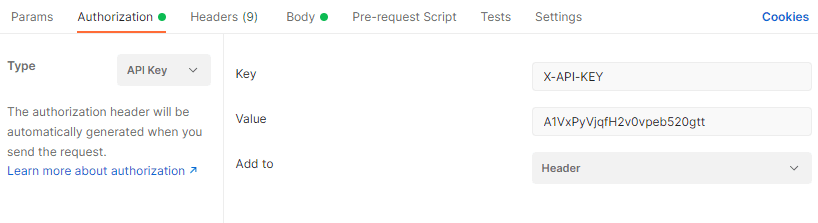
Pass the key in a request header named X-API-KEY:
curl https://app.peopleforce.io/api/v4/people \
  -H "X-API-KEY: <your_api_key>"
All API requests must be made over HTTPS — calls over plain HTTP will fail, and so will requests without authentication.
What to expect in a response
Two behaviours surprise people moving from v1–v3, and both are deliberate:
People outside the role's population are absent, not refused. Listing
endpoints return only the people the key's roles cover, so a narrowly scoped
key gets a short list — or an empty one — with a 200, never a 403. A
request for a specific person outside the population returns 404, because as
far as that key is concerned the record doesn't exist.
Fields the role doesn't grant are omitted from the JSON, not returned as
null. If the role doesn't grant Compensation or a personal field, the key
is simply not present in the object. Write your integration to treat a missing
key as "not permitted" rather than "empty", and don't infer that a person has no
value for a field you can't see.
{
  "data": {
    "id": 1234,
    "status": "active",
    "full_name": "Dana Whitfield",
    "email": "dana@example.com",
    "department": { "id": 12, "name": "Marketing" }
  }
}
Above, date_of_birth and hired_on are absent because the role doesn't grant
them — not because they're unset.
The Pulse endpoints are the exception to the first rule: they return 403 when
the key's roles grant no survey access at all, rather than an empty list.
Errors
v4 returns errors as application/problem+json with a status and a
message, and a detail array when there is field-level information:
{
  "status": "unauthorized",
  "message": "Invalid credentials provided."
}| Status | message | Usual cause |
|---|---|---|
401 | Invalid credentials provided. | Missing X-API-KEY, a mistyped key, a key that isn't a service account, or a disabled key |
403 | You are not authorized to access this resource. | The key's roles don't grant this action |
404 | The requested resource could not be found. | The record doesn't exist — or is outside the role's population |
400 | The request is invalid or cannot be processed. | Malformed or missing parameters, or a body that isn't valid JSON |
405 | The HTTP method is not allowed for this resource. | The path exists but not with this verb; Allow lists the verbs it accepts |
422 | One or more validation errors occurred. | The payload failed validation; detail lists each error |
500 | An unexpected server error occurred. | A problem on our side — try again, or contact support |
Disabling and revoking a key
From Settings → API keys you can disable a key with the toggle on its
row, stopping it from working without deleting it — useful while pausing an
integration. A disabled key gets 401 on every request.

To remove a key permanently, open the … menu on its row and choose Delete.

Deleting an API key is permanent and immediate. Any integration using that key stops working at once, and the key cannot be recreated. Account for every integration before deleting.
Deleting a key leaves its roles in place, so a replacement key can be attached to the same role. Deleting the role instead revokes everything the key could reach while leaving the credential valid — it will authenticate and return nothing.
Troubleshooting
401 on every request
Check, in order: that the key was copied in full; that it's a Service
account key and not a Company key; that it's still enabled in Settings →
API keys; and that you're calling /api/v4/….
Authentication works, but every list is empty
The key has no role attached, or the role's population matches nobody. Open the role and confirm the key is selected under Who is assigned this role?, then check the rules under Whose data can members access?.
A person is in the list, but a field is missing
The role doesn't grant that field for that person. Grant it on the role's People → What can this role see? tab — under Personal for profile fields and tables, Job for hire date and termination details, or Compensation for salary data.
403 on a write, but reads work
Writes to the org-structure lists need the matching Manage … permission on the role's Company tab. Writes to a person's data need Edit rather than View on the relevant field.